How to create your own Inventory item with Vaniakit
With Vaniakit you can use scriptable objects to add your own weapon, ablity, currency, etc.
Create your item
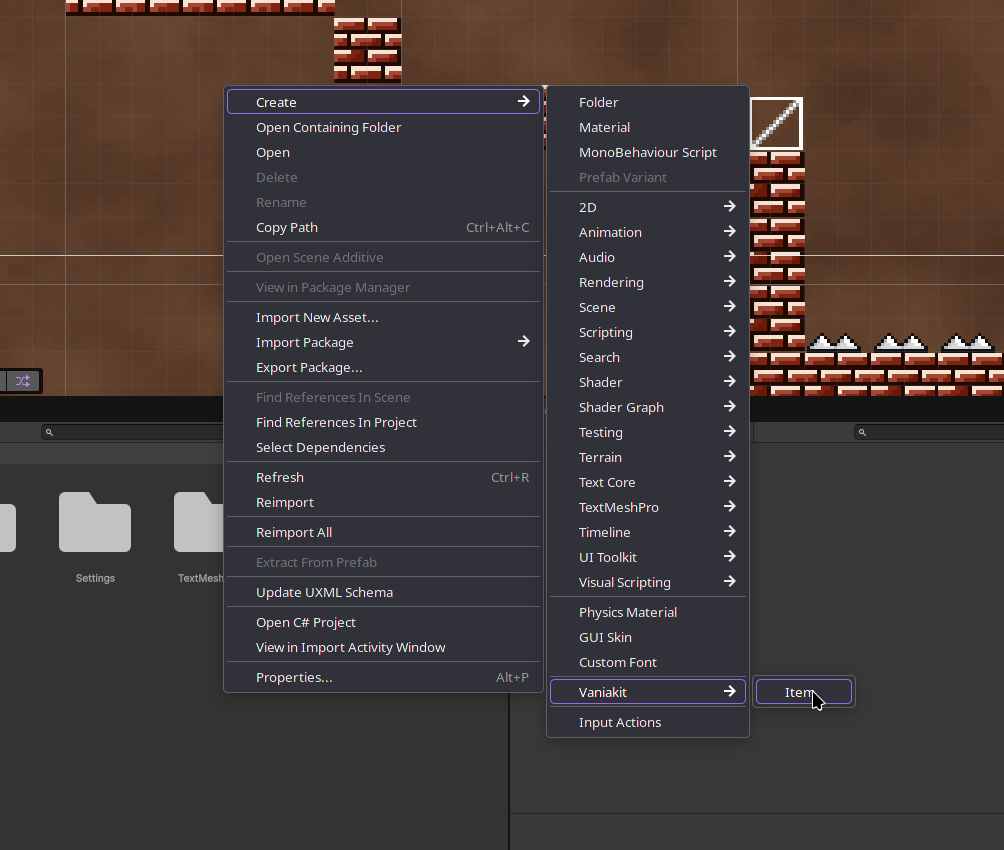
Right click on your project tab and create your item by going to Create/Vaniakit/Item. Next name your item
Create your item script
Ignore this part if you're testing VaniaKit as a participant of the research project. This section has already been done for you. Move on to this
Create a monobehaviour script and add the IEquipable interface to it
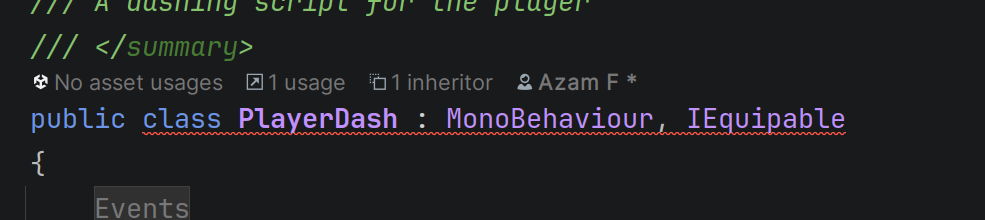 Fix the errors by adding the
 Equip() and Unequip() methods into your script
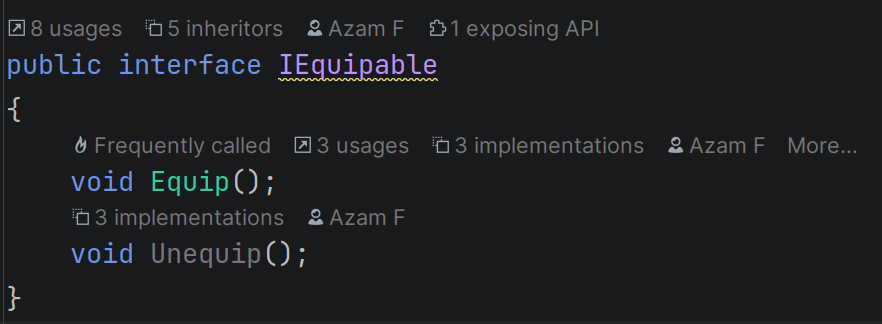
Hint! You can use the lightbulb in Rider and Visual studio on the far left to add it yourself if you have your cursor selected on the interface.
 Add code that makes your player equip the item button when it's toggled. Example of how that looks for the player dash
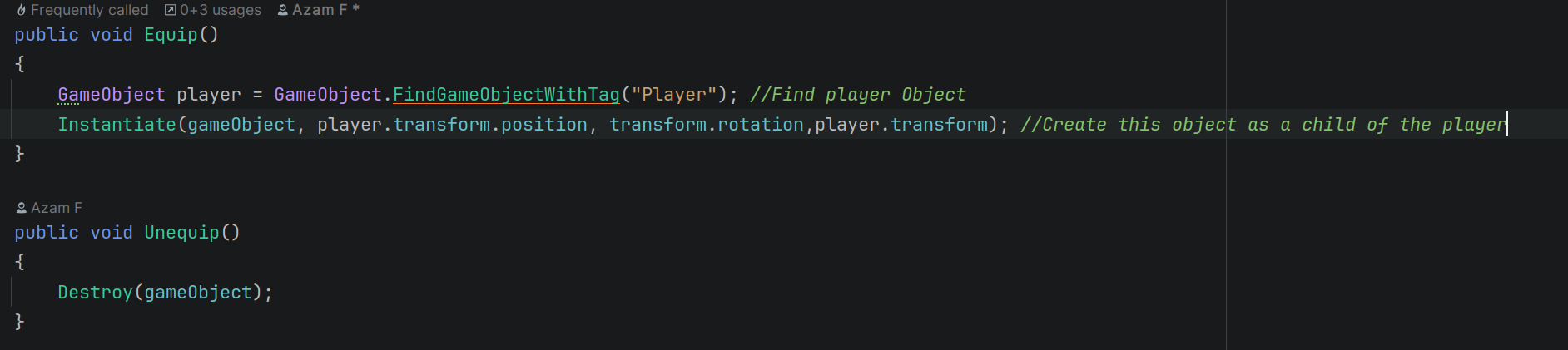 Now you adding code to you item to make it yours.
Create an empty game object
Ignore this part if you're testing VaniaKit as a participant of the research project. This section has already been done for you. Move on to this
Create an empty game object in the scene view and add your item script to it
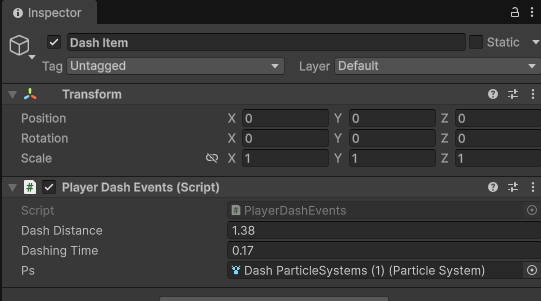
Make it a prefab
Drag your game object into the project view and make it a prefab
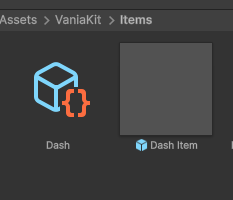
We'll add it to the Item object we made previously
Set your values for your Item object
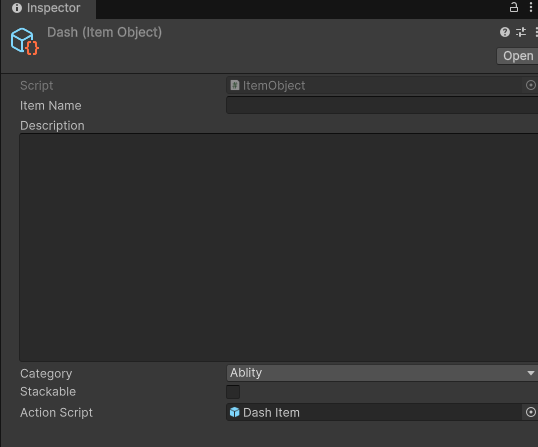 Set your item's
- Name
- Description
- Category (aka what is your item)
- Whether it can be stacked (can the player hold multiple of this item)
- Add your prefab that we just made to the
Action Scriptslot. You can find this object inside the Scenario 1 folder for the sword
You've now made your own item that you can add to your Inventory!